Imagine you are in a coffee shop, and the Wi-Fi goes down just as you need to send a critical email. Or perhaps you are on a road trip, and your laptop needs an internet connection to navigate a new city. In these moments, the device in your pocket—your smartphone—holds the key. Your cell phone can transform into a portable Wi-Fi router, broadcasting its cellular data connection to your laptop, tablet, or even a friend’s phone. This feature, known as a mobile hotspot or tethering, is one of the most powerful tools in modern connectivity, yet many users never activate it.
In 2026, with remote work and digital nomadism more prevalent than ever, knowing how to use your phone as a hotspot is not just a convenience; it is a survival skill. This guide will walk you through everything you need to know, from the initial setup on both Android and iOS devices to advanced troubleshooting and data management. By the end, you will be able to turn your smartphone into a reliable internet source for any situation, ensuring you stay connected no matter where you are.
Step-by-Step Setup: How to Activate Your Hotspot
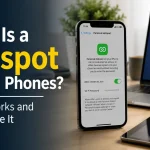
Activating your hotspot is a straightforward process, though the exact menu names vary slightly between Android and iOS. On an iPhone running iOS 19 or later, open the Settings app and tap on "Personal Hotspot." You will see a toggle switch at the top. Turn it on. Your phone will immediately begin broadcasting a Wi-Fi network. You can set a custom Wi-Fi password by tapping "Wi-Fi Password" to prevent unauthorized access. security, always use a strong password that is at least eight characters long and includes a mix of letters numbers, and symbols.
On Android devices, the process is similar but the path can differ by manufacturer (Samsung, Google Pixel, OnePlus, etc.). Generally go to Settings, then "Connections" or "Network & Internet," and look for "Mobile Hotspot & Tethering." Tap on "Mobile Hotspot" and it on. You will see network name (SSID) and password. Most Android phones allow you to configure advanced settings, such as the band (2.4GHz vs. 5GHz). For maximum range, use 2.4GHz; for speeds at closer range, use 5GHz. You can also set a data limit to automatically turn off the hotspot if you reach a certain threshold, which is a lifesaver for avoiding overage fees.
A common mistake is forgetting to turn off the hotspot when you are done. An active drains your battery significantly faster than normal usage. Always remember to toggle the feature off in the quick settings panel (swipe down from the top of your screen) or in the main settings menu. Some phones also have a "Bluetooth tethering" option in the same menu, which is useful for connecting a single device like a smartwatch or a basic laptop when you want to conserve power.
Key Takeaways
- ✓ Activating a hotspot is simple: go to Settings > Personal Hotspot (iOS) or Settings > Connections > Mobile Hotspot (Android) and toggle it on.
- ✓ Always use a strong, unique password and WPA2/WPA3 encryption to secure your hotspot from unauthorized access.
- ✓ Battery life is the main limitation; plug your phone into a power source while tethering for extended use.
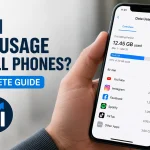
- ✓ Monitor your data usage closely, as streaming video can quickly consume your hotspot data cap.
- ✓ For best performance, place your phone in a high location with a strong cellular signal and use the 5GHz band for speed or 2.4GHz for range
Frequently Asked Questions
Q Will using my phone as a hotspot use my regular data plan?
Yes, hotspot usage draws from your cellular data plan. However, many carriers have a separate, smaller data cap specifically for hotspot usage (e.g., 10GB of high-speed hotspot data). Once that cap is reached, speeds are usually throttled to 3G or slower. Check your plan details to know your exact limits.
Can I use my phone as a hotspot while it is connected to Wi-Fi?
On most phones, no. When your phone is connected to a Wi-Fi network, it cannot broadcast its own Wi-Fi hotspot simultaneously. However, some Android phones have a "Wi-Fi Sharing" feature rebroadcasts the Wi-Fi signal you are connected to, effectively acting as a repeater. This is different from using cellular data.
Why is my hotspot so slow even with full bars?
Slow speeds can be caused by network congestion (too many people using the same cell tower), your carrier throttling your hotspot data after you hit your cap, or interference from other electronic devices. Try switching the Wi-Fi band from 5GHz to 2.4GHz, or vice versa, and ensure no other devices are downloading large files on your hotspot.
Is it safe to use a public hotspot from my phone?
Using your own phone as a hotspot is generally safer than using a public Wi-Fi network because you control the security settings. However, the data traveling from your phone to the cell tower is still subject to carrier-level monitoring. For maximum security, especially when handling sensitive information, use a VPN on your phone and all connected devices.
How many devices can connect to my phone’s hotspot at once?
This depends on your phone model and carrier. Most modern smartphones support between 5 and 10 simultaneous connections. Connecting too many devices will slow down the network for everyone. For best performance, limit connections to 3 or 4 devices especially if you are doing data-intensive tasks like video streaming.
Conclusion
Using your cell phone as a hotspot is a powerful skill that turns your pocket computer into a portable internet hub. From the initial setup and performance optimization to security best practices and advanced tips, you now have the knowledge to stay connected in almost any situation. Remember the key pillars: secure your network with a strong password, manage your data and battery wisely, and troubleshoot common issues by checking your signal and power settings.
As we move through 2026, the mobile hotspot will only become more integral to our daily lives, bridging the gap between mobile and home internet. Whether you are a remote worker, a frequent traveler, or just someone who needs a backup connection, take a few minutes today to your phone’s hotspot settings. Test it out, set a strong password, and familiarize yourself with the controls. The next time you find yourself without Wi-Fi, you will be ready to connect instantly and confidently.

Daniel Mitchell is a home appliances specialist with over a decade of hands-on experience testing, reviewing, and comparing everyday household products. He focuses on helping homeowners make smarter buying decisions through practical insights, real-world testing, and easy-to-understand advice. Daniel covers everything from kitchen appliances to smart home solutions, with a strong emphasis on performance, energy efficiency, and long-term reliability.